
Excel symbols are the foundation of every spreadsheet calculation, formula, and data operation in Microsoft Excel. Although they may look like simple characters, symbols such as *=, +, -, , /, $, %, :, !, &, and <> control how Excel understands instructions and processes information.
Every day, millions of people use Excel symbols while creating budgets, analyzing business reports, managing databases, preparing academic research, tracking inventory, and building financial models.
A single symbol can change the meaning of an entire formula. For example, changing a normal cell reference from A1 to $A$1 can completely change how a calculation behaves when copied.
Understanding Excel symbols is important for beginners because they make formulas easier to create and troubleshoot. For advanced users, knowing these symbols allows faster spreadsheet automation, accurate data analysis, and better control over complex worksheets.
This complete guide explains the meaning, history, technical purpose, practical uses, common mistakes, and hidden details behind Excel symbols.
Quick Meaning of Excel Symbols
Excel symbols are special characters used in Microsoft Excel to create formulas, perform mathematical operations, compare values, reference cells, connect worksheets, organize tables, and control calculations. They act as instructions that tell Excel how to process and display information inside a spreadsheet.
Excel Symbols Overview Table
| Symbol | Name | Meaning | Main Purpose | Example |
| = | Equal Sign | Starts a formula | Tells Excel to calculate | =A1+B1 |
| + | Plus Sign | Addition operator | Adds numbers | =10+5 |
| – | Minus Sign | Subtraction operator | Subtracts values | =20-5 |
| * | Asterisk | Multiplication operator | Multiplies values | =A1*B1 |
| / | Forward Slash | Division operator | Divides values | =A1/B1 |
| ^ | Caret | Power operator | Calculates exponent | =2^3 |
| % | Percentage Sign | Percentage value | Converts numbers into percentages | =50% |
| $ | Dollar Sign | Absolute reference | Locks cells | =$A$1 |
| : | Colon | Range operator | Selects multiple cells | A1:A20 |
| , | Comma | Function separator | Separates arguments | =SUM(A1,B1) |
| ; | Semicolon | Alternative separator | Used in some regional settings | =SUM(A1;B1) |
| () | Parentheses | Function container | Holds calculations | =SUM(A1:A5) |
| > | Greater Than | Comparison operator | Checks larger values | A1>50 |
| < | Less Than | Comparison operator | Checks smaller values | A1<50 |
| >= | Greater Than or Equal | Logical comparison | Tests conditions | A1>=100 |
| <= | Less Than or Equal | Logical comparison | Tests conditions | A1<=100 |
| <> | Not Equal | Difference comparison | Finds unequal values | A1<>B1 |
| & | Ampersand | Text joining operator | Combines text | A1&B1 |
| ! | Exclamation Mark | Sheet reference | Connects sheets and cells | Sheet2!A1 |
| # | Number Sign | Error indicator | Shows formula errors | #VALUE! |
| @ | At Symbol | Implicit intersection | Handles modern formulas | @Sales |
| [] | Square Brackets | Structured reference | Works with Excel tables | Table1[Price] |
What Do Excel Symbols Mean?
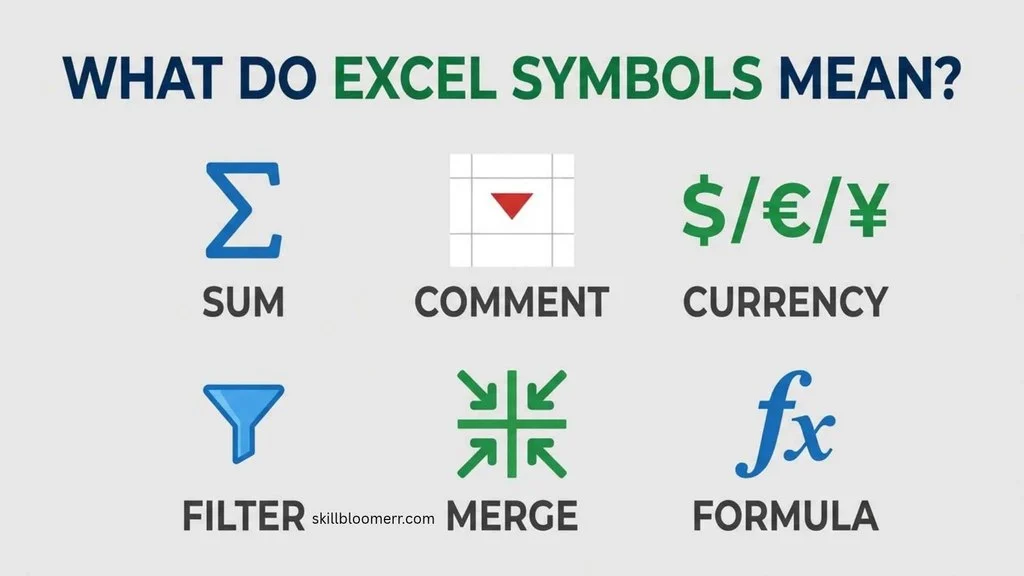
Excel symbols are a special language that allows users to communicate instructions to the spreadsheet program. Excel does not understand formulas like a human does. Instead, it reads symbols and follows specific rules to calculate results.
For example:
=A1+B1
Excel reads this formula in three parts:
- = tells Excel that a calculation should happen.
- A1 identifies the first cell.
- + tells Excel to add values.
- B1 identifies the second cell.
The final result is the combined value of both cells.
Without symbols, Excel would only display text instead of performing calculations.
Why Are Excel Symbols Important?
Excel symbols are important because they help users:
- Create formulas
- Automate calculations
- Analyze large amounts of data
- Build financial reports
- Compare information
- Connect multiple worksheets
- Reduce manual calculations
- Improve spreadsheet accuracy
A person working with thousands of rows of information cannot manually calculate every result. Excel symbols allow the program to perform these tasks instantly.
History and Origin of Excel Symbols
The idea behind Excel symbols comes from traditional mathematics and early computer programming.
Before Microsoft Excel existed, mathematicians used symbols such as:
- Plus (+) for addition
- Minus (-) for subtraction
- Equal (=) for equality
- Percentage (%) for parts of a whole
When electronic spreadsheets were created, these familiar symbols became the foundation of computer-based calculations.
The first popular spreadsheet program, VisiCalc, was released in 1979. It introduced the idea that users could enter formulas into cells instead of manually calculating numbers.
Microsoft Excel was introduced in 1985 and continued developing the spreadsheet formula system. Over time, Excel added new symbols to support:
- Complex formulas
- Financial calculations
- Database functions
- Tables
- Dynamic arrays
- Data analysis tools
Today, Excel symbols combine mathematical traditions with modern computing techniques.
Understanding the Main Categories of Excel Symbols
Excel symbols can be divided into several major groups.
Mathematical Operators
Mathematical symbols perform basic calculations.
Addition Symbol (+)
The plus sign adds numbers together.
Example:
=A1+B1
If A1 contains 20 and B1 contains 30, the result is:
50
Common uses:
- Total sales
- Budget calculations
- Student grades
- Inventory counts
Subtraction Symbol (-)
The minus symbol removes one value from another.
Example:
=A1-B1
Common uses:
- Profit calculations
- Remaining inventory
- Difference analysis
Multiplication Symbol (*)
The asterisk multiplies values.
Example:
=A1*B1
Used for:
- Price × Quantity calculations
- Financial models
- Business forecasting
Division Symbol (/)
The forward slash divides values.
Example:
=A1/B1
Used for:
- Average calculations
- Ratios
- Percentages
Power Symbol (^)
The caret calculates exponential values.
Example:
=5^2
Result:
25
Used in:
- Scientific calculations
- Mathematical formulas
- Engineering models
Formula Structure Symbols
Some symbols do not calculate numbers but organize formulas.
Equal Sign (=)
The equal sign is the most important Excel symbol because every formula begins with it.
Examples:
=SUM(A1:A10)
=A1*B1
Without it, Excel treats the entry as normal text.
Parentheses ()
Parentheses control the order of calculations and hold function arguments.
Example:
=(10+5)*2
Excel calculates inside the parentheses first.
They are also required in functions:
=AVERAGE(A1:A10)
Comma (,)
The comma separates different values inside functions.
Example:
=SUM(A1,B1,C1)
This tells Excel to calculate multiple separate arguments.
Reference Symbols in Excel
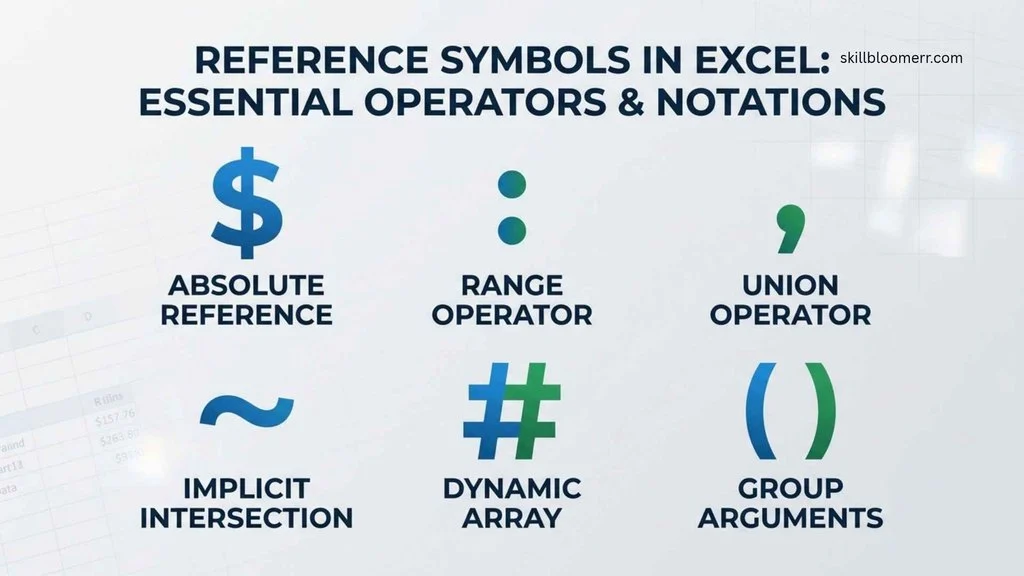
Reference symbols tell Excel where information comes from.
Dollar Sign ($)
The dollar sign creates fixed cell references.
There are three types:
Relative Reference
Example:
A1
The row and column can change when copied.
Absolute Reference
Example:
$A$1
Both the row and column remain fixed.
Mixed Reference
Examples:
$A1
or
A$1
One part stays fixed while the other changes.
This symbol is extremely important in:
- Financial models
- Tax calculations
- Price lists
- Business templates
Colon (:)
The colon represents a range of cells.
Example:
A1:A10
Means:
All cells between A1 and A10.
It is commonly used with:
- SUM
- AVERAGE
- COUNT
- MAX
- MIN
Example:
=SUM(A1:A100)
Exclamation Mark (!)
The exclamation mark connects worksheet names with cell references.
Example:
Sales!B5
This means:
Look at cell B5 in the Sales worksheet.
It is useful when working with multiple sheets.
Comparison Symbols in Excel
Comparison symbols allow Excel to test conditions.
They are commonly used with:
- IF functions
- Conditional formatting
- Data validation
Greater Than (>)
Checks whether one value is larger.
Example:
=A1>100
Less Than (<)
Checks whether one value is smaller.
Example:
=A1<100
Greater Than or Equal (>=)
Checks whether a value meets or exceeds a requirement.
Example:
=A1>=60
Common use:
Passing grades or sales targets.
Less Than or Equal (<=)
Checks whether a value is below a limit.
Example:
=A1<=500
Not Equal (<>)
Checks whether two values are different.
Example:
=A1<>B1
Used for:
- Finding errors
- Comparing records
- Checking changes
Text Symbols in Excel
Excel can also work with words and sentences.
Ampersand (&)
The ampersand combines text.
Example:
=A1&B1
If:
A1 = John
B1 = Smith
Result:
JohnSmith
A space can be added:
=A1&” “&B1
Result:
John Smith
Common uses:
- Creating names
- Combining addresses
- Building reports
Technical Meaning of Excel Symbols
Excel symbols have important technical functions in spreadsheet computing.
They help Excel:
- Interpret commands
- Process formulas
- Manage references
- Perform logical decisions
- Handle structured data
Modern Excel also supports advanced symbols for dynamic arrays and table calculations.
Excel Symbols in Business Applications
Businesses rely heavily on Excel symbols.
Common examples include:
Financial Planning
Symbols help calculate:
- Revenue
- Expenses
- Profit margins
- Growth percentages
Example:
=Revenue-Cost
Inventory Management
Companies use formulas to calculate:
- Available stock
- Product movement
- Reorder levels
Human Resources
Excel symbols help manage:
- Salaries
- Attendance
- Employee records
Marketing Analysis
Symbols help calculate:
- Conversion rates
- Campaign performance
- Customer data
Common Excel Symbol Mistakes
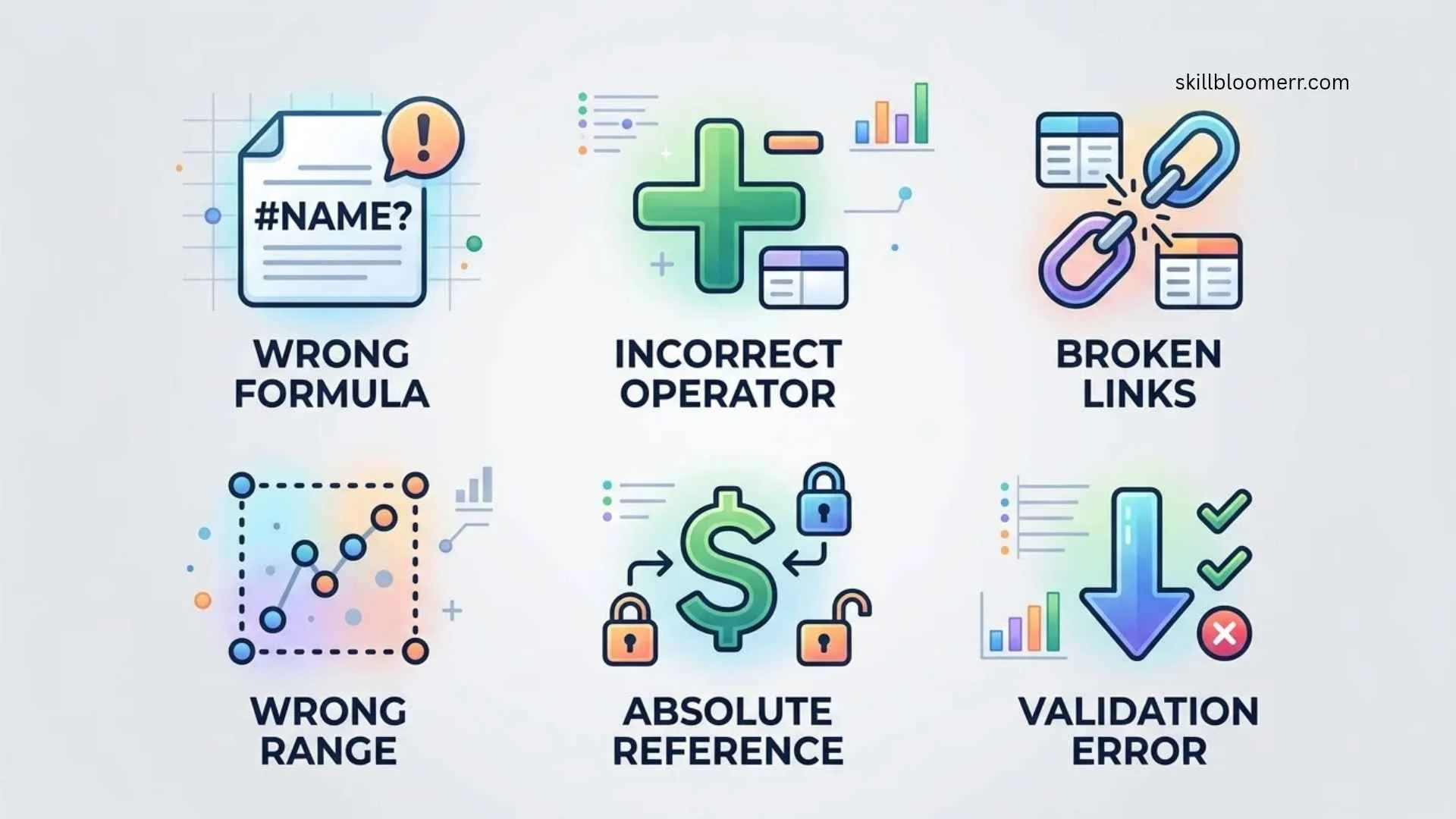
Forgetting the Equal Sign
Incorrect:
A1+B1
Excel treats it as text.
Correct:
=A1+B1
Using the Wrong Reference Type
Incorrect:
A1
when a fixed value is needed.
Correct:
$A$1
Mixing Text and Numbers Incorrectly
Example:
=10+”Hello”
This creates an error because Excel cannot add text to a number.
Wrong Parentheses Placement
Incorrect:
=SUM(A1:A10
Correct:
=SUM(A1:A10)
Common Misconceptions About Excel Symbols
Excel Symbols Are Only for Experts
False. Beginners use basic symbols every day.
The Dollar Sign Always Means Money
False. In formulas, it usually locks references.
Every Excel Error Is a Symbol Problem
False. Errors can also come from incorrect data or missing references.
Excel Symbols Are Different From Mathematical Symbols
Many are based on the same mathematical concepts.
Interesting Facts About Excel Symbols
- Excel formulas are built from a combination of symbols and cell references.
- The equal sign is required before every formula calculation.
- The dollar sign can completely change how copied formulas behave.
- The colon symbol can represent hundreds or thousands of cells at once.
- Excel uses symbols instead of programming commands to make spreadsheets easier for non-programmers.
- Many financial professionals depend on Excel symbols daily.
- The ampersand symbol allows users to create custom text automatically.
- Excel errors beginning with # are also considered symbolic messages.
- Some Excel formulas can combine dozens of symbols in a single calculation.
- Learning symbols is one of the fastest ways to improve Excel skills.
Related Symbols and Concepts
Google Sheets Symbols
Google Sheets uses many of the same symbols because it follows similar spreadsheet logic.
Mathematical Symbols
Related symbols include:
- ∑ Summation
- √ Square root
- ≈ Approximately equal
- ≤ Less than or equal
Programming Symbols
Some Excel symbols are also common in programming:
- []
- <>
- &
- %
Frequently Asked Questions
What are Excel symbols used for?
Excel symbols are used to create formulas, perform calculations, compare values, reference cells, and organize spreadsheet instructions. They allow Excel to understand what action a user wants the program to perform.
Which Excel symbol starts a formula?
The equal sign (=) starts every Excel formula. It tells Excel that the information after the symbol should be calculated instead of displayed as normal text.
What does the $ symbol mean in Excel formulas?
The dollar sign locks a cell reference. It prevents Excel from changing a row, column, or both when a formula is copied to another location.
What does the colon symbol mean in Excel?
The colon symbol creates a cell range. For example, A1:A20 means all cells from A1 through A20.
Why does Excel use symbols?
Excel uses symbols because they provide a simple way to communicate instructions. Instead of writing programming commands, users can create formulas with familiar mathematical characters.
What does <> mean in Excel?
The <> symbol means “not equal to.” It helps Excel identify values that are different from each other.
What is the difference between A1 and $A$1?
A1 is a relative reference that changes when copied. $A$1 is an absolute reference that stays fixed.
Are Excel symbols universal?
Most symbols are the same worldwide, but some formula separators may differ depending on language and regional settings.
Can Excel symbols be used in charts?
Yes. Excel formulas using symbols can create calculated values that are displayed in charts and reports.
How can beginners learn Excel symbols?
Beginners should start with basic operators like +, -, *, /, and =, then practice cell references, functions, and logical symbols.
Key Takeaways
- Excel symbols are the building blocks of spreadsheet formulas.
- The equal sign begins every formula.
- Mathematical operators perform calculations.
- Reference symbols control cell connections.
- The dollar sign locks references.
- Comparison symbols help Excel make decisions.
- Text symbols combine information.
- Understanding symbols improves accuracy and productivity.
- Excel symbols are used in business, education, science, and technology.
Conclusion
Excel symbols may appear small, but they control almost everything that happens inside a spreadsheet. From simple addition formulas to advanced financial models, these characters provide the instructions Excel needs to calculate, analyze, and organize information.
Learning Excel symbols is one of the most valuable steps for anyone who wants to become confident with spreadsheets. Whether you are a student, business professional, researcher, or data analyst, understanding these symbols allows you to work faster, avoid mistakes, and create more powerful Excel solutions.

I’m Nathaniel Brooks, an educational writer who loves exploring ideas and making useful knowledge accessible to everyone. I write for SkillBloomerr with a focus on clear explanations, practical tips, and meaningful learning. My goal is to help readers discover something valuable every time they visit the site.
Books: Learn Something New and The Practical Knowledge Handbook
 Olivia Hartwell